Welcome to the world of Zoom

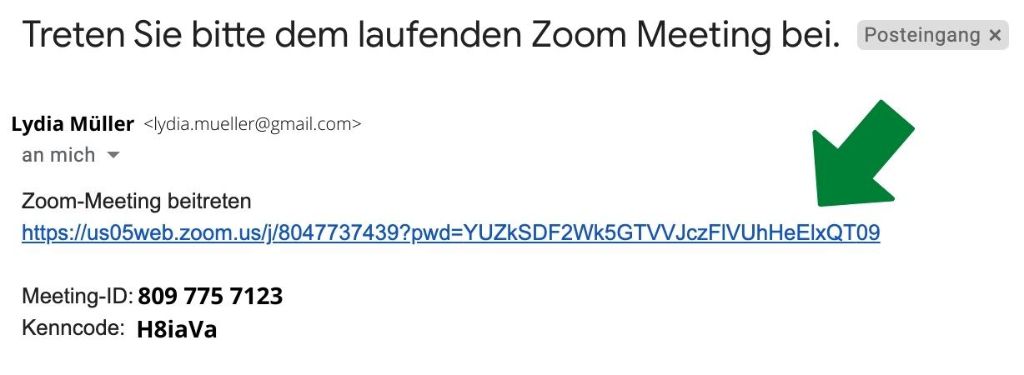
Once you have registered for an online course, you will receive confirmation of your enrolment before the course begins. Before the course starts, you will receive a link, a meeting ID and a access code via email.

It sounds complicated, but it isn’t.

  1. You tap or click on the link
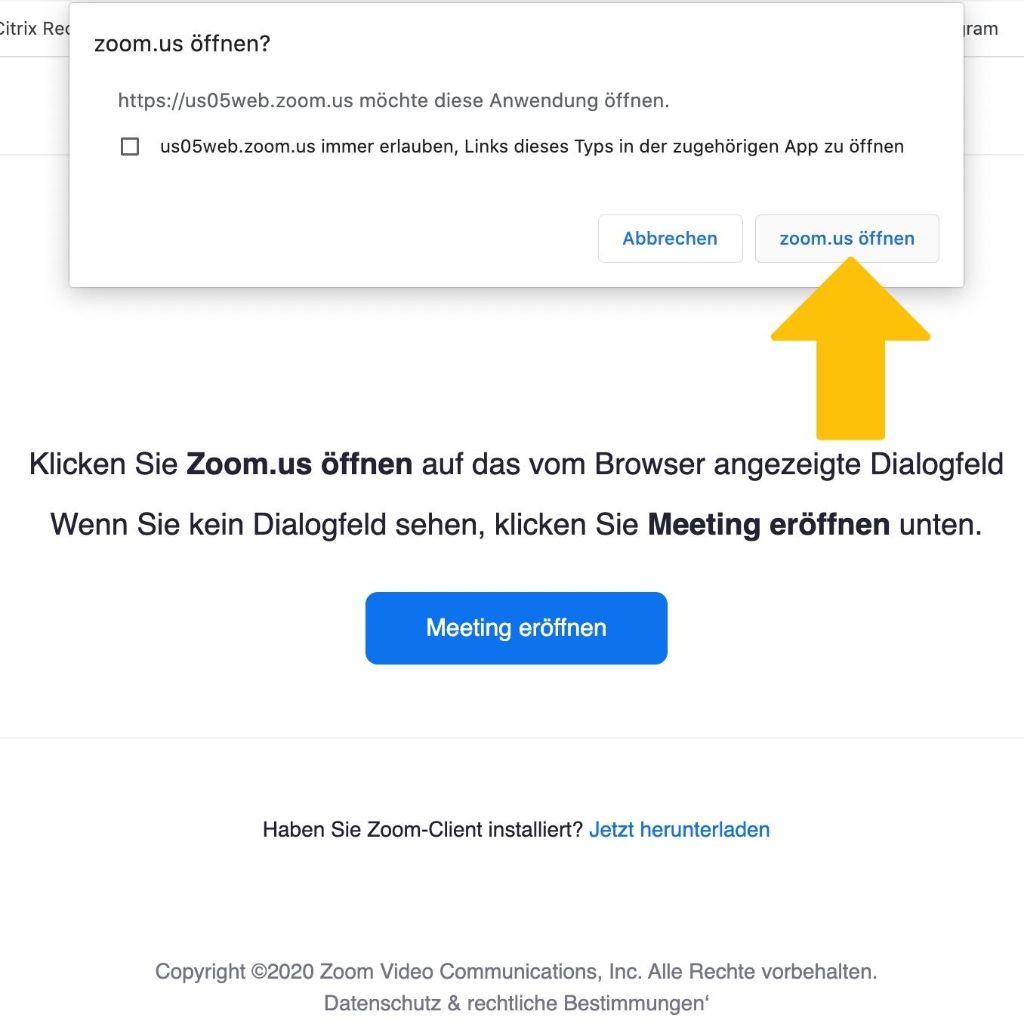
  2. A window will now pop up: click on ‘Open zoom.us’.
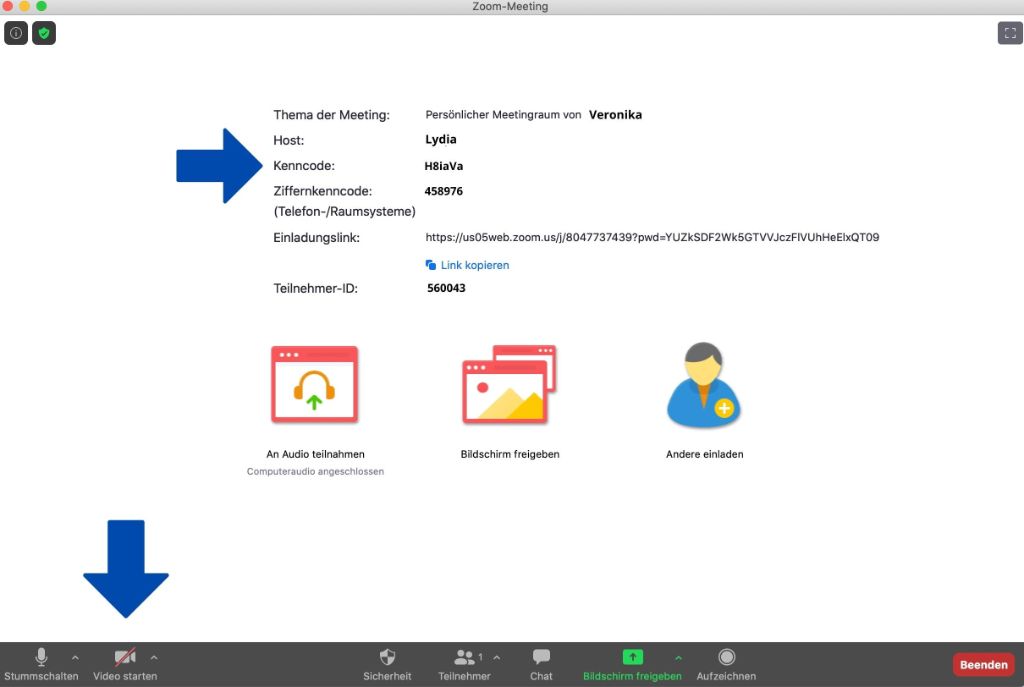
  3. Now enter the meeting ID and then the access code. If this is your first time using Zoom, you’ll be asked to download and run the Zoom launcher. (You only need to do this once.)
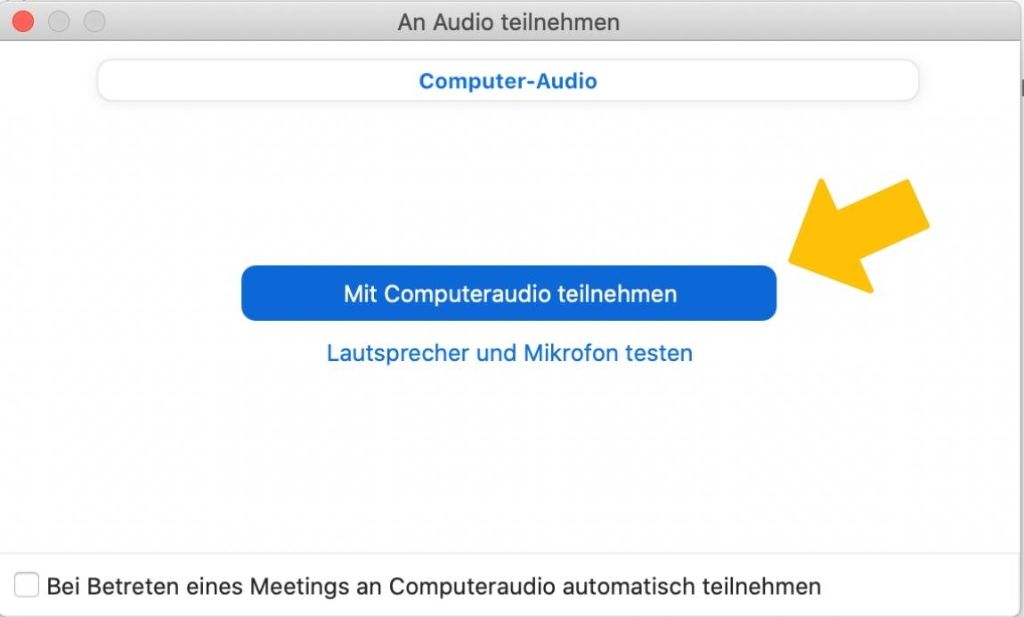
  4. Turn on your computer’s audio and join with video.

If the installation doesn’t work, we offer free help at the Digital Café.
Zoom guide for computers

Zoom guide for tablets and smartphones

Steps 1 to 4

Screenshot einer Mail bezüglich eines Zoom Meetings.
Anleitung zum Beitreten eines Zoom Meetings.
Screenshot mit Anleitung zu Zoom und Audiofunktion.
Screenshot eines Zoom Meetings.

Potential problems

Installation is not working:

  • You are using an outdated browser.

The other meeting participants cannot see or hear you:

You selected the wrong options when joining the Zoom meeting; the correct option is:

  1. Join with video 
  2. Join audio via computer
  • Is the camera on your device perhaps covered?
  •  You have disabled the camera and/or microphone in your device’s system settings.

The video and/or audio is stuttering: 

  • Your device is connected to the internet via Wi-Fi. Connect it directly to the internet using a cable.
  •  Do not use a virtual background.